Introduction
Adding a solicitor to a contact record will identify who is responsible for communication with the contact. This will prevent confusion and inform others in the organization who is communicating with what contact.
Table of Contents
Prerequisites
To begin leveraging the add/deletion functionality for solicitors, CharityEngine recommends ensuring you have established your solicitors within your contact record. To learn more about creating solicitors, click here.
Instructions - Manually Add/Remove a Solicitor to an Individual Contact Record
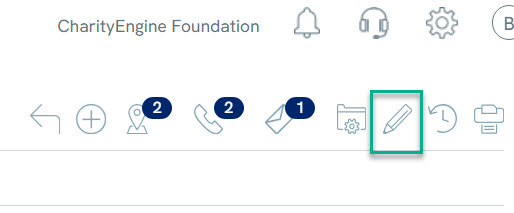
Step 1: To add a solicitor to an individual contact record, manage the contact and click Edit (Pencil) from the right-hand corner menu.
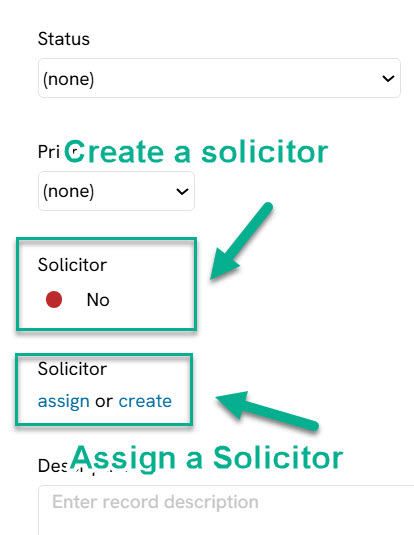
Step 2: Click on the Solicitor "Assign Contact" from the General Tab.
NOTE: The solicitor toggle switch below is used to make the existing contact an organizational solicitor. Do not select this unless this is your intention
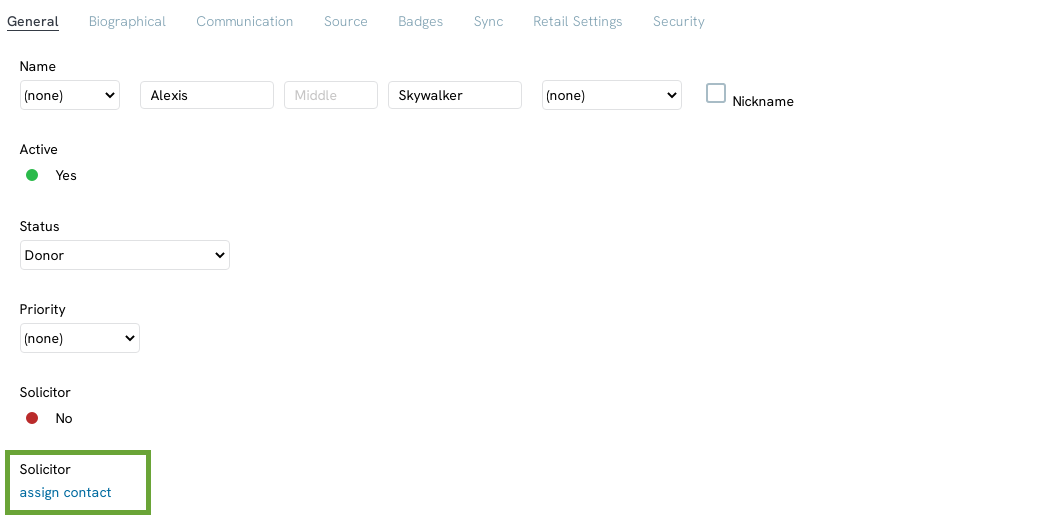
Step 3: A pop-up will appear for you to search for the contact. Locate the name of your solicitor by entering the name. Click on select.
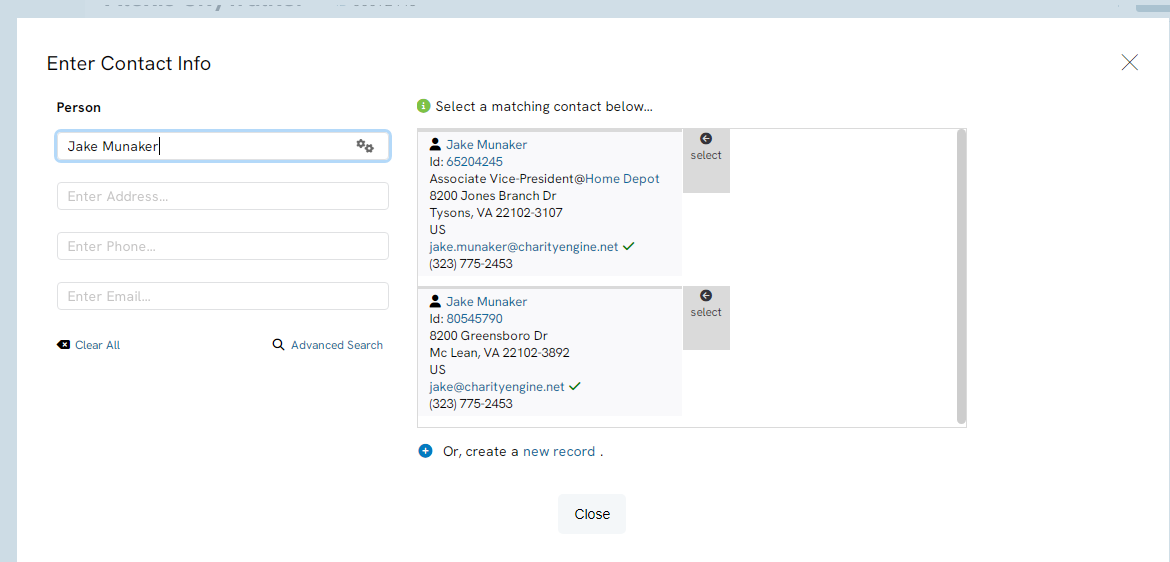
Step 4: By selecting the contact, they will be assigned as the solicitor of the contact. Click SAVE to secure your change.
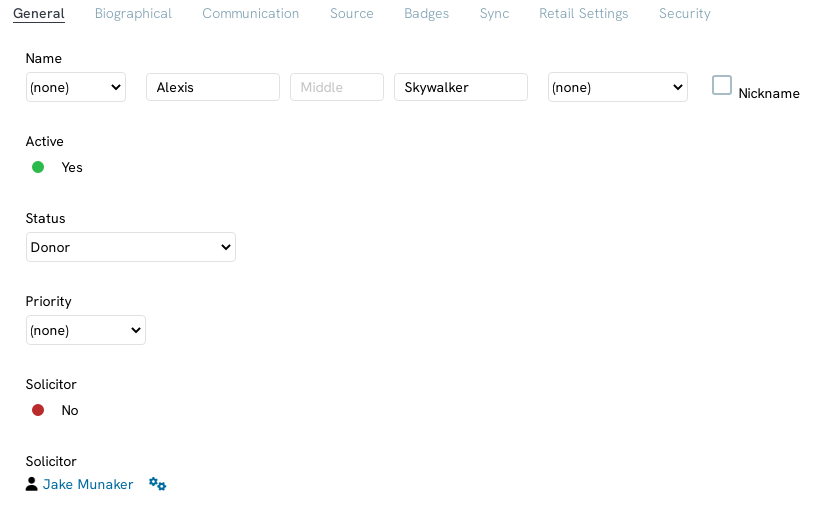
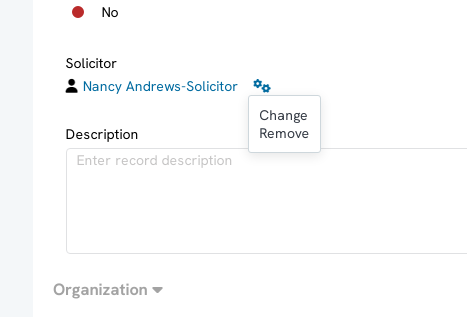
Step 5: To manually remove the Solicitor/ Account Manager, click on the gear icon next to the solicitor name and select Remove (or Change to modify). Click on SAVE to secure your changes.
Instructions - Bulk Addition for a Solicitor to Contact Records
Step 1: To add a solicitor to several contact records, navigate to the People App > Organizations & People > Search & Manage > complete a search to identify your population in which an individual solicitor should be applied.
Step 2: Ensure your view is modified to Viewing: Default in the top right corner of your returned results.
Step 3: Use the check box in the top left-hand corner of the listing screen to select all contact records.
Step 4: Use the down arrow to select Assign Solicitor

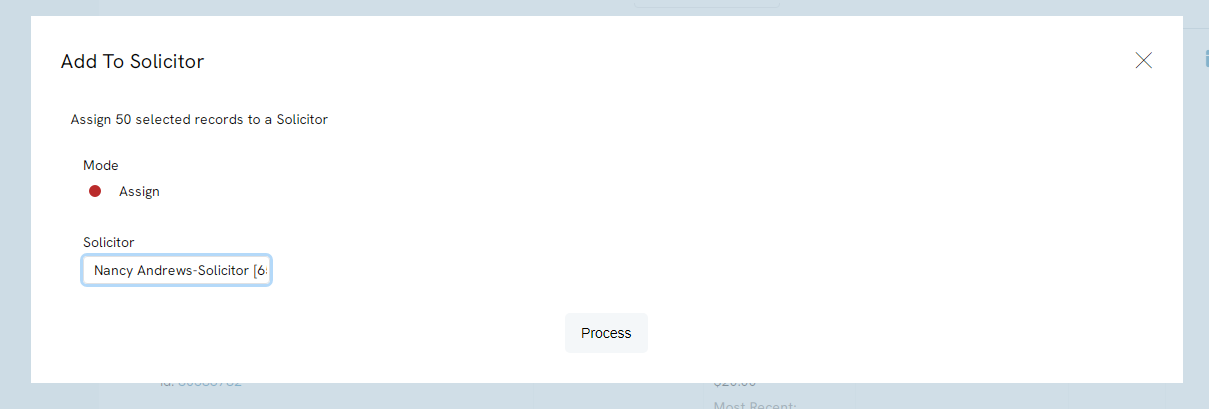
Step 5: Within the pop-up, enter in the name of the solicitor, select and click PROCESS to assign.
Instructions - Viewing All Contacts Assigned to Me/Solicitor
As a solicitor, if your CharityEngine contact record is assigned as a solicitor and contacts have been assigned to you, you can leverage the Contacts listing screen to easily locate your assigned contacts.
Step 1: To review your assigned contacts, navigate to the People App > Organizations & People > Contact.
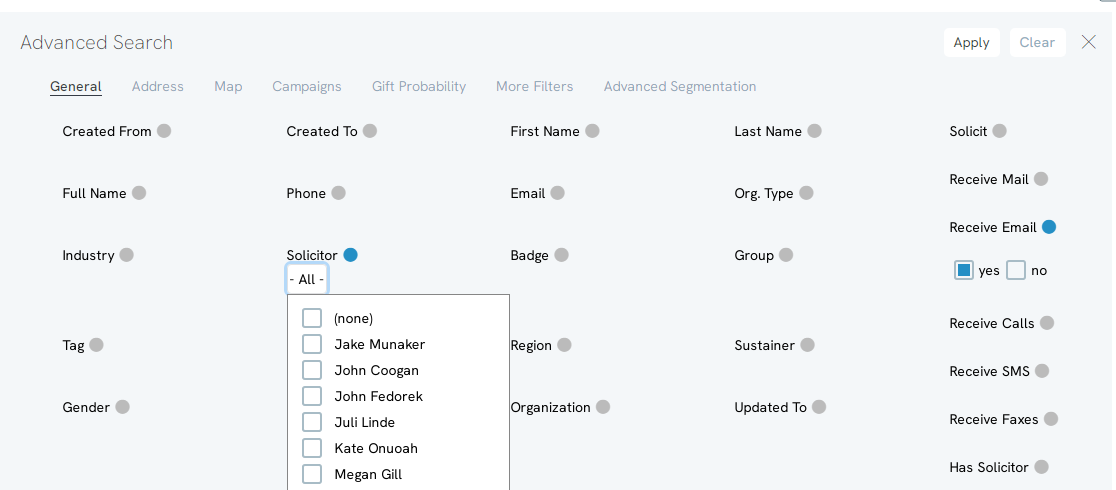
Step 2: In the advanced filter, click on the Solicitor Radio button the select your name from the list to filter for contacts you are the solicitor of. It is important that your contact record be configured as a solicitor or you name will not appear in the list.
FAQ & Other Reading
Q. What are solicitors and how do I create a solicitor contact record?
A. Learn more about solicitors here.
Q. Are there reporting options for solicitors to see their portfolio?
A. Yes - please see our article Opportunities - Moves Management: How to Set-up Solicitors and Defining Types of Solicitors - and see the section - Instructions: How to assign the Solicitors Portfolio Summary Email
Q. Can we limit those who can create/delete a solicitor status?
A. Yes. Creating a custom user role with the CharityEngine.Configuration.Miscellaneous.Assign Contact Solicitor will allow the restriction necessary to limit users who can create or update solicitors. Learn more about User Roles in our article Configuration: User Role Permission Levels
